Embark on a journey into the world of containerization with Docker. This comprehensive guide provides a step-by-step approach to containerizing your applications, ensuring seamless deployment and management across various environments. From foundational concepts to advanced techniques, we’ll equip you with the knowledge and practical skills needed to leverage Docker’s power.
We’ll cover everything from setting up your Docker environment to building and running Docker images, managing containers, and understanding essential security considerations. We’ll also delve into advanced concepts like Docker Compose and networking, along with troubleshooting common issues and best practices. Prepare to unlock the potential of Docker for your application deployments.
Introduction to Docker and Containers
Docker is a platform that simplifies the process of packaging and deploying applications as containers. Containerization technology allows developers to create self-contained units that include everything needed to run an application, including the code, runtime, system tools, system libraries, and settings. This approach ensures consistent application behavior across different environments, from development to production.Containerization provides numerous advantages over traditional virtualization methods.
It is significantly more lightweight and efficient, leading to faster startup times and resource utilization. This translates to lower costs and increased scalability for applications.
Core Concepts
Understanding Docker’s fundamental concepts is crucial for effective utilization. Containers encapsulate an application and its dependencies, providing isolation from other applications. Images are read-only templates that define the contents of a container. Dockerfiles are scripts that automate the creation of Docker images, specifying the steps needed to assemble the image. They act as recipes for creating containerized applications, enabling efficient and repeatable deployments.
Benefits of Docker
Docker offers several key advantages for application deployment. Consistent environments across development, testing, and production phases are facilitated by the ability to replicate identical environments in each phase. This ensures predictable behavior and avoids compatibility issues. Deployment speed is significantly improved through the lightweight nature of containers, leading to faster startup times. Resource efficiency is another key benefit, as Docker containers share the host operating system kernel, reducing overhead compared to traditional virtualization.
This leads to optimized resource utilization and lower infrastructure costs. Furthermore, Docker simplifies application portability by allowing applications to run seamlessly across different platforms, facilitating easier scaling and deployment in various environments.
Comparison to Other Virtualization Methods
| Feature | Docker | Virtual Machines (VMs) |
|---|---|---|
| Operating System | Shares the host OS kernel | Runs a complete guest OS |
| Resource Utilization | High efficiency due to shared kernel | Lower efficiency due to the overhead of a separate OS |
| Startup Time | Faster due to minimal overhead | Slower due to the guest OS startup |
| Portability | Highly portable across different platforms | Less portable due to OS dependencies |
| Complexity | Relatively simple to learn and use | More complex to set up and manage |
| Resource Isolation | Containers share the host kernel, so isolation is at the application level | Virtual machines are isolated by hypervisors, isolating the entire OS |
This table illustrates the key differences in resource utilization, startup time, and other critical factors between Docker and traditional virtualization methods. The table highlights Docker’s efficiency and ease of use.
Setting up the Docker Environment
Getting your Docker environment set up correctly is crucial for successful containerization. A properly configured environment ensures smooth container operations and efficient resource utilization. This section details the steps for installing Docker on various operating systems, verifying the installation, configuring Docker, and utilizing Docker Compose for managing multiple containers.
Installing Docker on Different Operating Systems
To utilize Docker effectively, you need to install it on your chosen operating system. The installation process varies slightly depending on the platform.
- Windows: Download the appropriate Docker Desktop installer from the official Docker website. Follow the on-screen instructions to complete the installation. Docker Desktop for Windows provides a user-friendly graphical interface for managing containers and images.
- macOS: Similar to Windows, download the Docker Desktop installer from the Docker website. The installation process is straightforward and guided by the installer. Docker Desktop for macOS also offers a graphical interface for interacting with the Docker environment.
- Linux: Docker installation on Linux distributions is generally accomplished through package managers. Use the package manager appropriate for your distribution (e.g., apt for Debian/Ubuntu, yum for CentOS/RHEL, or dnf for Fedora). Refer to the Docker documentation for your specific Linux distribution for the most up-to-date instructions.
Verifying Docker Installation and Daemon Status
After installation, verifying the Docker installation and daemon status is essential. This confirms the successful setup and allows you to identify any potential issues.
- Checking Docker Installation: Open a terminal or command prompt and execute the command `docker version`. The output should display the Docker version information, confirming that the installation was successful.
- Checking Docker Daemon Status: Use the command `docker info` to retrieve detailed information about the Docker daemon. The output will show the daemon’s status, along with other relevant information. Pay attention to the status message, which will indicate whether the daemon is running or not.
Configuring Docker for Specific Environments
Configuration options allow you to tailor Docker to your specific environment needs. These configurations optimize performance and control access to Docker resources.
- Docker Daemon Configuration: Docker daemon configuration is often handled through environment variables. These variables allow you to adjust various aspects of Docker’s behavior. For instance, `DOCKER_HOST` specifies the socket for the daemon. Detailed instructions on environment variable configuration can be found in the Docker documentation.
- User Permissions: Docker requires specific user permissions to run containers and manage images. Ensure the user account has the necessary permissions for interacting with Docker resources. This is critical for security and preventing unauthorized access to your Docker environment.
Using Docker Compose for Managing Multiple Containers
Docker Compose simplifies the management of multiple containers. It allows you to define and run multi-container applications using a single configuration file. This simplifies the orchestration process.
- Docker Compose File: The `docker-compose.yml` file defines the services and their dependencies in a declarative manner. It specifies the images, ports, volumes, and other configurations for each container. The `docker-compose.yml` file is used to create, start, stop, and manage multiple containers.
- Managing Services: Use `docker-compose up` to start all defined services in the `docker-compose.yml` file. Commands like `docker-compose down` stop all the services, and `docker-compose ps` display the status of all running containers.
Building Docker Images
Creating Docker images is a crucial step in containerizing applications. It encapsulates the application, its dependencies, and the operating system environment required for execution, ensuring consistent behavior across different systems. This process involves defining a Dockerfile, a text document that instructs Docker on how to build the image.A well-structured Dockerfile streamlines the image creation process, minimizing errors and ensuring reproducibility.
This approach ensures that the application runs reliably in any environment where Docker is installed.
Creating a Dockerfile for a Simple Web Server
A Dockerfile defines the steps to build a Docker image. For a simple web server application, the Dockerfile would specify the base image, the installation of required packages, and the command to run the application. A well-structured Dockerfile facilitates consistent deployments and simplifies maintenance.
Defining the Base Image
The base image is the foundation of the Docker image. It provides the operating system environment and essential tools. For a web server application, a lightweight Linux distribution like Alpine Linux or a smaller variant of Ubuntu is often preferred. Selecting a suitable base image reduces the size of the final image and improves performance.
Installing Dependencies
The Dockerfile specifies how to install the application’s dependencies. This typically involves using package managers (like `apk` for Alpine Linux or `apt` for Ubuntu). Explicitly listing dependencies avoids inconsistencies caused by package management differences across various systems.
Running the Application
The Dockerfile Artikels the command to run the application within the container. This might involve starting a web server process or executing other necessary scripts. The command should be precise and reliable.
Importance of Dockerfile Structure and Organization
A well-structured Dockerfile is essential for maintainability and reproducibility. Clear naming conventions, comments, and logical grouping of instructions improve readability and reduce errors. Using consistent formatting across all Dockerfiles enhances collaboration among development teams. A well-organized Dockerfile reduces the likelihood of introducing errors during the image build process and promotes easier maintenance.
Essential Dockerfile Instructions
A well-organized Dockerfile provides a structured approach to building containerized applications. This approach facilitates maintainability, reproducibility, and improved developer experience. Here’s a table outlining essential Dockerfile instructions:
| Instruction | Description |
|---|---|
FROM |
Specifies the base image to use. |
RUN |
Executes a command within the container. |
COPY |
Copies files from the host machine to the container. |
CMD |
Specifies the command to run when the container starts. |
EXPOSE |
Specifies ports that the container will expose. |
WORKDIR |
Sets the working directory within the container. |
Running and Managing Containers

Running Docker containers involves executing the application packaged within the image. This section details the methods for starting, interacting with, and managing these containers effectively. Understanding these processes is crucial for deploying and maintaining applications in a containerized environment.Effective container management allows for efficient resource utilization and streamlined application scaling. Managing multiple containers, and connecting them through Docker’s networking capabilities, is essential for building complex applications.
This approach enhances the overall efficiency and maintainability of the application.
Starting Docker Containers
Starting a Docker container involves utilizing the `docker run` command. This command takes the image name and optional parameters to configure the container’s runtime environment. Key parameters include specifying the container name, ports to map, environment variables, and volumes to mount.
Interacting with Running Containers
Several methods facilitate interaction with running containers. Accessing logs provides insights into container operation and potential issues. Executing commands within the container allows for troubleshooting and maintenance tasks. These tools are critical for monitoring and managing the application’s health and performance.
- Accessing Logs: The `docker logs` command displays the logs of a specific container. This allows for real-time monitoring of the application’s operation, aiding in debugging and identifying potential issues. For instance, if an application is failing to start, the logs can provide insights into the error messages or warnings, aiding in diagnosing the problem quickly.
- Executing Commands: The `docker exec` command allows executing commands within a running container. This is essential for tasks such as inspecting files, running diagnostics, or fixing issues without needing to rebuild or restart the container. This approach provides flexibility and speed for troubleshooting or maintenance.
Managing Multiple Containers
Managing multiple containers involves using Docker containers and container orchestration tools. Docker Compose is a popular tool for defining and running multi-container applications. It simplifies the process of managing multiple containers and their interdependencies, allowing developers to deploy applications more efficiently. Kubernetes is another powerful container orchestration tool, particularly useful for complex, large-scale applications.
Docker Networking
Docker’s networking capabilities enable communication between containers. Using networks allows for applications to interact with each other. This can be beneficial for applications that rely on internal communication. For example, a web server and a database container can be connected through a Docker network, allowing the web server to access the database.
- Creating Networks: Docker networks provide a layer of abstraction, isolating container communication. This enables better security and management of container interactions, which is essential for deploying applications in production environments.
- Connecting Containers: Containers can be connected to networks using the `docker network connect` command. This allows containers to communicate with each other securely, enabling seamless interaction between services. For instance, a microservice architecture can be implemented by connecting containers on the same network, allowing them to interact and exchange data effortlessly.
Working with Docker Compose

Docker Compose simplifies the orchestration of multi-container applications. It allows you to define and run multiple Docker containers as a single application, managing their dependencies and interactions. This streamlines development and deployment, especially for complex applications. Using Compose, you can define services with their respective ports, volumes, and network configurations in a single YAML file, facilitating consistent and repeatable deployments across environments.
Purpose and Benefits of Docker Compose
Docker Compose acts as a powerful tool for defining and running multi-container applications. It provides a declarative approach to defining services, their dependencies, and the network configuration. This reduces the complexity of managing multiple containers and facilitates consistent deployments across different environments. The benefits include:
- Simplified Multi-Container Application Management: Compose allows you to define and manage multiple containers as a single unit, simplifying the process for complex applications. This reduces the likelihood of errors during deployment and configuration.
- Consistent Deployment Across Environments: A single Compose file ensures the same application structure is deployed consistently across development, testing, and production environments. This uniformity streamlines deployment and reduces inconsistencies.
- Declarative Definition of Services: You define the services, their dependencies, and network configurations in a YAML file. This declarative approach promotes easier understanding and maintenance of the application architecture.
- Improved Development Workflow: Teams can quickly spin up and test applications locally, enhancing the development process and collaboration.
Defining Services in a Docker Compose File
A Docker Compose file (typically named `docker-compose.yml`) uses YAML to define the services in a multi-container application. Each service describes a container and its configuration, including the image to use, ports to expose, volumes to mount, and environment variables. This configuration facilitates the orchestration of services and the management of dependencies.
Examples of Docker Compose Files
Different application architectures can be represented using Docker Compose. Here are examples for a web application and a database service.
Web Application
“`yamlversion: “3.9”services: web: build: ./web-app ports:
“80
80″ depends_on: – db db: image: postgres:13 ports:
“5432
5432″ volumes:
db_data
/var/lib/postgresql/datavolumes: db_data:“`This example demonstrates a web application (`web`) that depends on a PostgreSQL database (`db`). The web service maps port 80 on the host to port 80 on the container. The database service exposes port 5432 and uses a volume to persist data.
Microservices Architecture
“`yamlversion: “3.9”services: api: build: ./api ports:
“8080
8080″ frontend: build: ./frontend ports:
“3000
3000″ depends_on: – api“`This example shows a microservices architecture with an API service (`api`) and a frontend service (`frontend`). The frontend service depends on the API service, ensuring the API service is running before the frontend.
Comparison of Docker Compose and Kubernetes
Docker Compose and Kubernetes are both container orchestration tools, but they differ in their scope and capabilities.
| Feature | Docker Compose | Kubernetes |
|---|---|---|
| Scope | Small to medium-sized applications | Large-scale, distributed applications |
| Complexity | Simpler | More complex |
| Scalability | Limited | Highly scalable |
| Resource Management | Handles resources within a single host | Manages resources across a cluster of hosts |
| Deployment | Suitable for development and testing environments | Ideal for production environments |
Docker Compose is suitable for smaller applications and development environments, whereas Kubernetes is a more powerful and flexible solution for large-scale and production deployments.
Persistent Storage with Docker
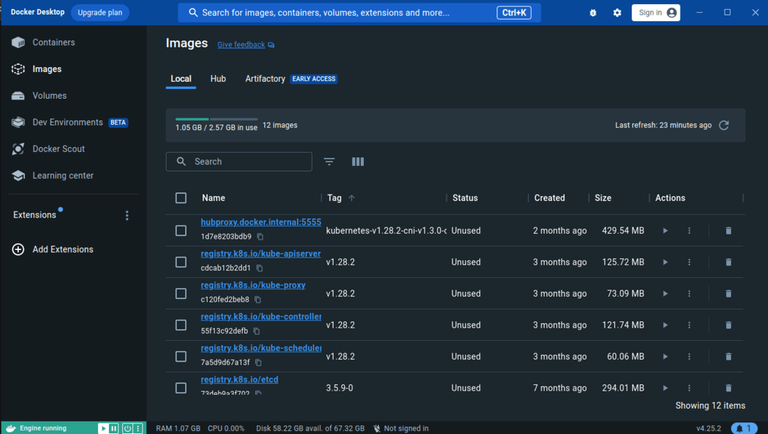
Persisting data within Docker containers is crucial for applications requiring persistent storage beyond the container’s lifespan. This involves ensuring data is available even after the container is stopped or restarted. Different methods exist, each with its own trade-offs. Understanding these methods allows developers to choose the most suitable approach for their specific application needs.Data stored inside a container is typically lost when the container is removed.
This is a fundamental characteristic of containerized environments. To address this, Docker offers mechanisms for maintaining data persistence, enabling applications to access their data consistently. These mechanisms fall into two main categories: volumes and bind mounts.
Methods for Persistent Storage
Various methods are available for persisting data in Docker containers, each with its own advantages and disadvantages. Understanding these options is essential for selecting the best approach for specific use cases.
- Volumes: Volumes are dedicated storage areas outside of the container’s file system. They provide a persistent data store that is independent of the container’s lifecycle. When a container using a volume is stopped or removed, the data within the volume remains intact, making it ideal for data that needs to be preserved. Data within a volume is accessible across multiple containers, if necessary, offering greater flexibility.
This approach allows for greater data isolation and simplifies data management.
- Bind Mounts: Bind mounts establish a direct connection between a directory on the host machine and a directory inside the container. This effectively makes the host directory accessible within the container. This approach is simpler for sharing data between containers and the host system. However, it does not offer the same level of isolation as volumes, and the data is not automatically preserved across container restarts.
Bind mounts are most useful when sharing data between a container and other processes on the host system.
Using Volumes for Persistent Storage
Volumes are a powerful tool for ensuring data persistence in Docker containers. They are particularly well-suited for applications that require their data to survive container restarts or removals. Data is stored outside of the container’s filesystem, guaranteeing its integrity and accessibility across different container instances.
- Creating a Volume: Docker provides a command to create a volume. For instance, the command `docker volume create my-volume` creates a named volume called “my-volume.” This volume is now available for use by Docker containers.
- Mounting a Volume: To mount the volume within a container, use the `-v` flag during container creation. For example, `docker run -v my-volume:/app/data my-image`. This mounts the “my-volume” to the “/app/data” directory within the container. This ensures that data written to “/app/data” inside the container is stored in the “my-volume” and will persist even after the container is removed.
Using Bind Mounts for Data Sharing
Bind mounts provide a straightforward way to share data between a container and the host machine. This is particularly useful for applications that need access to files or directories on the host system. However, this method is less suitable for applications needing persistent storage independent of the container.
- Example: To share a directory named “data” on the host machine with the container’s `/app/data` directory, use the command `docker run -v /home/user/data:/app/data my-image`. This creates a direct link between the host directory and the container directory, making changes made in one accessible in the other.
Implications of Choosing One Method Over Another
The choice between volumes and bind mounts depends on the specific needs of the application. Volumes offer better data isolation and persistence, ideal for applications requiring data to survive container restarts. Bind mounts, on the other hand, provide a simpler method for sharing data between the container and the host, but they do not provide the same level of data isolation and persistence.
| Feature | Volumes | Bind Mounts |
|---|---|---|
| Persistence | Data survives container restarts | Data may be lost on container removal |
| Isolation | Greater data isolation | Less data isolation |
| Data sharing | Data can be shared between containers | Data sharing with host machine is straightforward |
Security Considerations in Docker
Docker’s containerization technology offers significant advantages, but robust security measures are crucial for protecting applications and data. Ignoring security aspects can lead to vulnerabilities, exposing sensitive information and potentially compromising the entire system. Therefore, understanding and implementing security best practices is paramount in any Docker deployment.Properly securing Docker images and containers involves a multi-faceted approach that encompasses image building, container runtime, and network configurations.
This section will delve into essential security considerations, providing strategies for securing Docker deployments, along with practical examples and the utilization of Docker’s built-in security features.
Importance of Secure Docker Images
Ensuring the security of Docker images is critical. Malicious code or vulnerabilities introduced during the image building process can compromise the entire containerized application. This proactive approach safeguards against potential threats that could exploit these vulnerabilities.
Strategies for Securing Docker Images
Building secure Docker images is a critical aspect of the overall security strategy. Employing several techniques can minimize vulnerabilities.
- Use Official Images Whenever Possible: Leveraging official Docker images reduces the risk of introducing vulnerabilities. Official images are typically well-maintained and regularly updated, minimizing the likelihood of security flaws.
- Regularly Update Images: Staying abreast of security updates is essential. Regularly updating Docker images to the latest versions often includes critical security patches, significantly bolstering the overall security posture.
- Employ Secure Image Building Practices: Implementing secure practices throughout the image building process, including employing a secure build environment, is critical to mitigate potential risks. This approach helps minimize the chance of incorporating vulnerabilities into the image.
- Employ a Multi-stage Build: Using a multi-stage build reduces the size of the final image by removing unnecessary files and dependencies. This strategy contributes to better security as the smaller image has fewer components to potentially harbor vulnerabilities.
Securing Docker Containers
Securing Docker containers involves establishing appropriate runtime settings and network configurations.
- Restrict Access to Resources: Controlling access to system resources within the container is paramount. Restricting access to unnecessary files and network interfaces helps to mitigate potential security breaches.
- Employ Least Privilege Principle: Assigning containers only the necessary permissions and privileges minimizes the potential damage caused by a security breach. Limiting access to resources to the minimum required helps prevent escalation of privileges.
- Use Privileged Mode Carefully: Privileged mode grants containers extensive access to the host system, which should be employed with caution. Using this mode should be strictly controlled and only in specific, carefully evaluated scenarios.
- Use Namespaces to Isolate Processes: Utilizing namespaces isolates processes and resources within the container, preventing one container from impacting another and enhancing security.
Docker Security Features
Docker provides several built-in security features to enhance container security.
- AppArmor and SELinux: These security modules can enforce security policies for containers, preventing unauthorized access and limiting potential damage.
- Namespaces: Docker leverages namespaces to isolate containers from each other and the host system, preventing unintended interactions and enhancing security.
- Cgroups: Control Groups (cgroups) limit resource consumption by containers, preventing one container from consuming excessive resources and affecting others. This is an essential aspect of managing resource constraints.
- Network Isolation: Docker provides mechanisms for isolating containers’ network traffic, preventing unauthorized communication between containers or the host system. This separation is essential for preventing network-based attacks.
Best Practices for Docker Deployments
Adhering to best practices is essential to fortify Docker deployments.
- Regular Security Audits: Conducting periodic security audits helps identify vulnerabilities and weaknesses in the Docker deployment.
- Implement Vulnerability Scanning: Regularly scanning Docker images for vulnerabilities helps to proactively address potential threats.
- Use a Container Registry: Employing a secure container registry for storing and managing Docker images ensures proper access controls and security measures.
- Implement a Secure CI/CD Pipeline: A secure CI/CD pipeline safeguards the integrity of Docker images throughout the development lifecycle.
Troubleshooting Common Issues

Docker, while powerful, can present challenges. This section details common Docker errors and effective troubleshooting strategies to help you overcome obstacles and maintain a smooth workflow. Understanding these issues and their solutions will streamline your containerization process and increase your efficiency.Effective troubleshooting involves a systematic approach. Identify the error message, understand its context within your Docker setup, and apply the appropriate solutions.
This methodical approach helps isolate the problem and ensures a swift resolution.
Container Startup and Running Issues
Troubleshooting container startup and running problems often involves examining the container logs for error messages. These logs provide invaluable insights into the cause of the issue.
- Container Fails to Start: Check the Docker logs for specific error messages. These messages often pinpoint the reason for the failure, such as incorrect command line arguments, missing dependencies, or issues with the image itself. Review the Dockerfile for potential syntax errors or missing instructions. Ensure the necessary libraries and packages are installed within the container’s environment.
- Container Crashes During Execution: Analyze the container logs for error messages and stack traces. Examine the application’s logs within the container for any clues about the cause of the crash. Potential causes include resource constraints, incorrect configuration, or runtime errors within the application itself. Verify the application is compatible with the Docker environment and adjust resource allocation if needed.
Network Connectivity Problems
Network connectivity issues between containers can stem from several factors. Proper configuration of the Docker network is crucial for seamless communication.
- Containers Cannot Communicate: Verify that the containers are on the same Docker network. Use `docker network ls` to list networks and `docker inspect
` to check the network settings of the containers. Ensure that ports are correctly exposed and mapped on the host machine. Review the application code for network communication errors. - Container Cannot Access External Resources: Check firewall rules and network configurations on the host machine. Ensure that the necessary ports are open to allow external access. Verify that the container has the correct network settings for accessing external resources. If the container is behind a proxy, configure the appropriate proxy settings within the container.
Docker Image Build Failures
Image build failures can be attributed to various reasons, from simple typos to complex dependencies. Careful review of the Dockerfile and the build process is vital.
- Build Errors in Dockerfile: Carefully review the Dockerfile for syntax errors, missing instructions, and incorrect commands. Verify that all necessary packages and dependencies are correctly installed and available within the build environment. Use `docker build -t
.` command to see detailed error messages. - Dependency Resolution Issues: Ensure all dependencies listed in the Dockerfile are available and compatible. Verify that the correct package managers are used for dependency installation within the Dockerfile instructions. Use a package manager such as `apt-get` or `yum` to install dependencies within the Dockerfile.
- Image Layer Issues: Inspect the Docker image layers using `docker history
` to identify any inconsistencies or corrupted layers. Rebuild the image from scratch if needed.
Advanced Docker Concepts
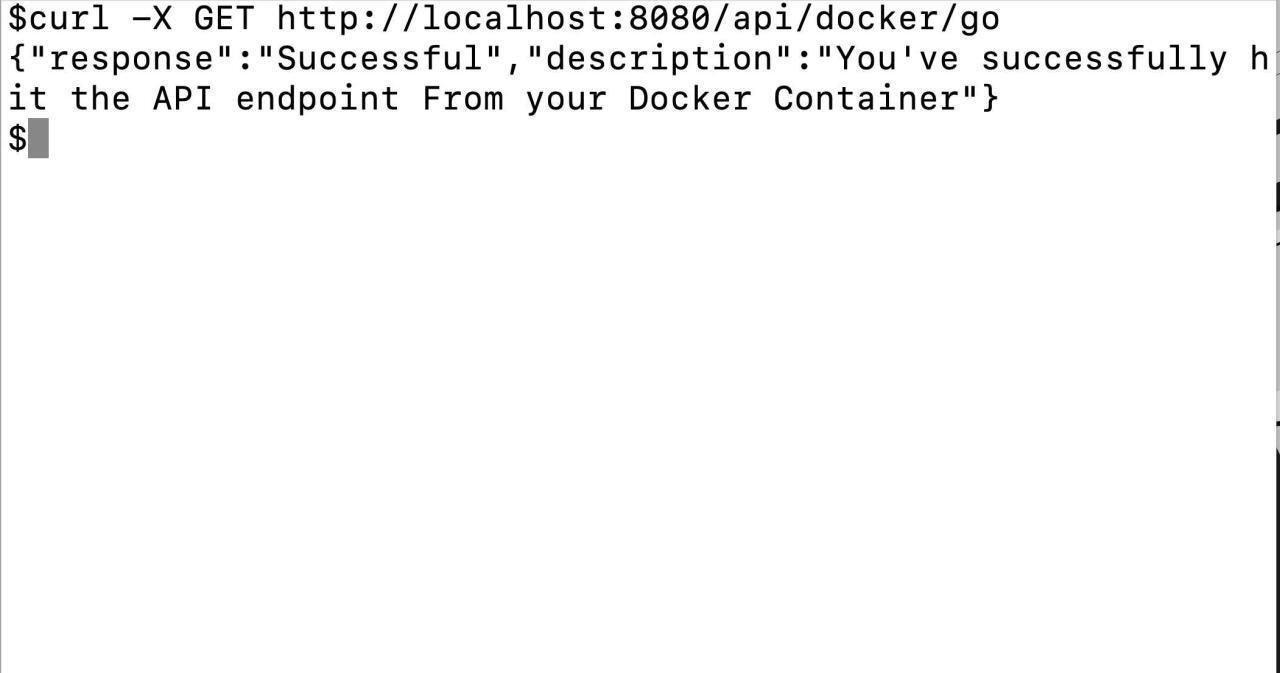
Docker, beyond its fundamental capabilities, offers advanced features that enhance its utility for complex applications and deployments. These advanced concepts enable more sophisticated container management, communication, and integration with broader development workflows. This section delves into Docker networking, swarm clusters, plugins, and CI/CD integration, providing practical insights for leveraging these features in your projects.Understanding Docker networking, swarm clusters, and plugins is crucial for managing complex applications and deployments effectively.
These advanced features allow for greater control and flexibility in containerized environments, facilitating efficient communication between containers, managing large-scale deployments, and integrating Docker into broader development processes.
Docker Networking
Container networking facilitates communication between containers. Docker’s networking allows containers to communicate with each other and with the host system. Various networking drivers are available, enabling different configurations. This enables flexible communication strategies within and across containerized applications.
- Docker networks provide a virtualized network infrastructure for containers. They encapsulate containers within a network segment, allowing containers to communicate with each other using IP addresses assigned within that network.
- Using networks, containers can be organized into logical groups. This allows applications with interdependent services to be deployed and managed as a cohesive unit.
- Docker’s network drivers provide various connectivity options, including bridge, host, and overlay networks. Bridge networks are the default and provide isolation and flexibility. Host networks connect containers directly to the host’s network, eliminating the overhead of a separate network layer. Overlay networks enable networking across multiple Docker hosts, facilitating complex deployments and distributed architectures.
Docker Swarm
Docker Swarm is a tool for managing clusters of Docker hosts. It allows orchestrating multiple Docker engines as a single unit, simplifying deployment and scaling of containerized applications. Swarm facilitates the deployment of large-scale applications that require distributed processing across multiple servers.
- Swarm manages a cluster of Docker hosts as a single logical unit. This enables deployment and management of applications across multiple machines.
- It provides features for automatic scaling, load balancing, and service discovery within the cluster. Swarm automatically distributes tasks across the cluster’s nodes, ensuring optimal performance and resource utilization.
- Swarm’s features facilitate deployment of large-scale applications and improve the management of complex, distributed systems.
Docker Plugins
Docker plugins extend the functionality of Docker. They provide custom capabilities that enhance Docker’s core features. These plugins can be used for tasks like building images, managing containers, or interacting with other systems.
- Plugins are extensions that enhance Docker’s core functionalities. They provide custom capabilities for tasks such as building specialized images, managing specific container types, or integrating with external tools and services.
- A wide range of plugins are available, extending Docker’s capabilities for different tasks, like image building using custom tools or integration with specific orchestration platforms.
- Using plugins allows tailoring Docker to specific needs and integrating with existing infrastructure. Plugins can streamline workflows and enhance efficiency.
Docker for CI/CD Pipelines
Docker plays a crucial role in Continuous Integration/Continuous Delivery (CI/CD) pipelines. Docker images encapsulate application code and dependencies, ensuring consistent environments across different stages of the pipeline.
- Docker images provide a consistent environment for CI/CD pipelines, eliminating environment-related issues during integration and deployment.
- Docker images enable automated build, test, and deployment processes, enhancing the speed and efficiency of the CI/CD workflow.
- Using Docker for CI/CD simplifies the process of building, testing, and deploying applications, improving the overall software development lifecycle.
Concluding Remarks
This guide has provided a robust overview of containerization using Docker, covering installation, image building, container management, and advanced features. By understanding the core principles and practical applications discussed, you’ll be well-equipped to integrate Docker into your development workflow. Containerization promises enhanced efficiency and portability, offering a significant advantage in modern application deployment.